


 108
108
Students are able to add guest users to view certain information located on their home.apu.edu Dashboard. Students can add parents, relatives, friends, etc. that they would like to share their information with.
Where is the "Manage Guests" Section?
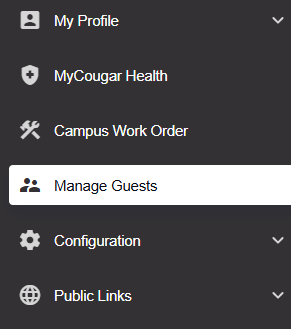
Once you are signed into home.apu.edu, scroll down in the left side options and select "Manage Guests."
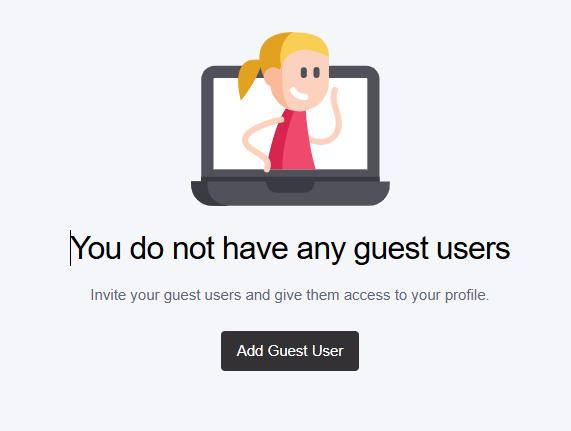
If you do not have any current users, you should see the display as shown down below:
Adding a Guest User
1) Press the "Add Guest User" button as shown above
2) Accept the Terms and Conditions
3) Fill in the "User information" and "USER PERMISSIONS" sections
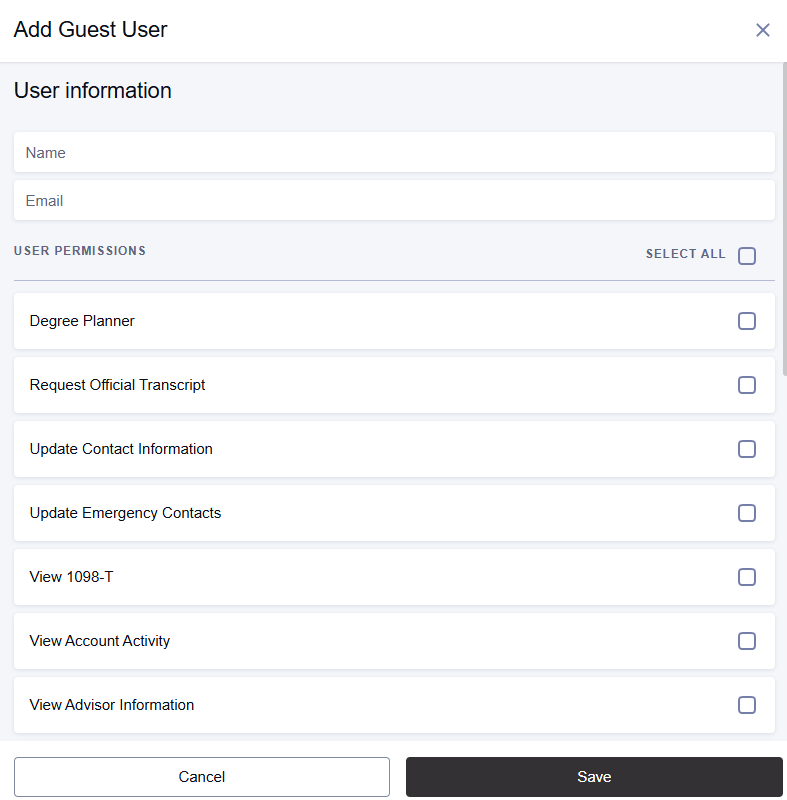
Name: The user's name
Email: The user's personal email (The username and password will be sent to this email)
Select the user permissions you would like the user to have access to, then hit "Save."
Once the Guest User Account is created, the Guest User will receive two emails. The first email will provide the User ID. The second email will provide a ONE-TIME use link to access the Guest Account's password. Please make sure the Guest User SAVES this password as the link only allows you to click on it ONE-TIME. You will need to save BOTH the User ID and the password.

*Please note that the Guest User will be aware of what permissions they have received and will be notified whenever permission for them are updated.
Guest User Sign In
1) Go to home.apu.edu
2) Click on "Local Accounts"
3) Enter your Guest User Account User ID and Password (If you no longer have access to this information, please ask the student to re-send the information *Scroll down to the Password Reset Section for more Information*)
4) You should now be logged into your Guest Account!
Guest User Account Password Reset/User ID Recovery
1) Have the student log into home.apu.edu > Sign In > Enter their APU NetID and Password
2) Scroll down in the left side options and select "Manage Guests"
3) Click the three dots in a vertical line to the right of "Edit Permissions" and select "Send new password"

4) Once the Guest User Account information is re-sent, the Guest User will receive two emails. The first email will provide the User ID. The second email will provide a ONE-TIME use link to access the Guest Account's password. Please make sure the Guest User SAVES this password as the link only allows you to click on it ONE-TIME. You will need to save BOTH the User ID and the password.

