


 249
249
While using an APU-owned Mac device, you might be prompted for a new enrollment.
Here's what you should expect to see.
A notification will appear “Enrollment Required: Your organization requires this Mac to enroll in a different device management service. You are required to complete enrollment by DATE/TIME”.
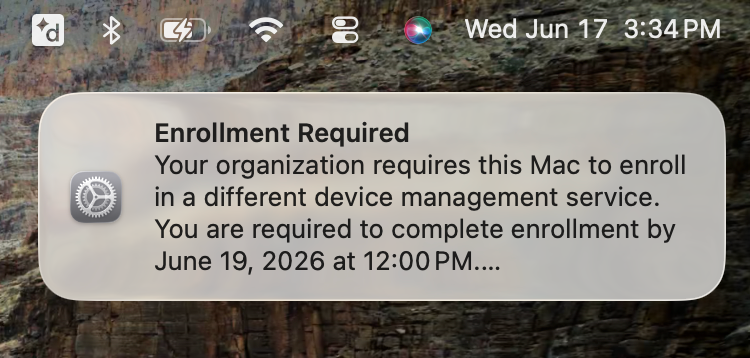
Start the enrollment by clicking the notification or going to “System Settings” and seeing “Enrollment Required”.
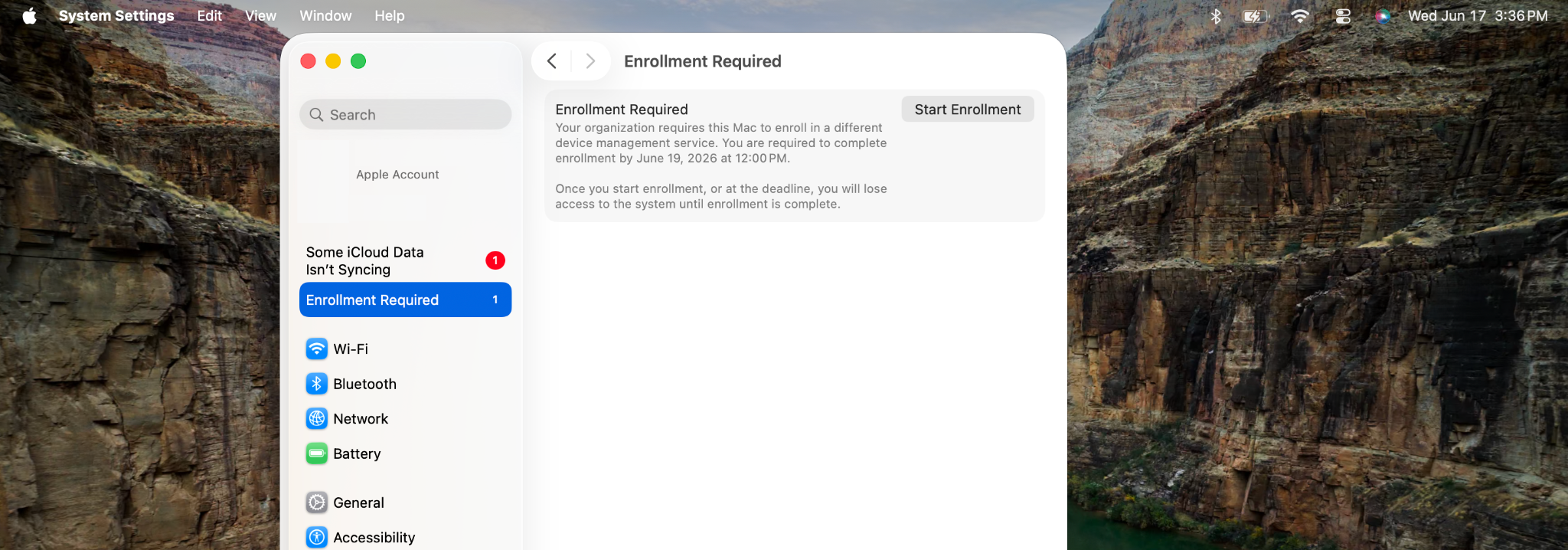
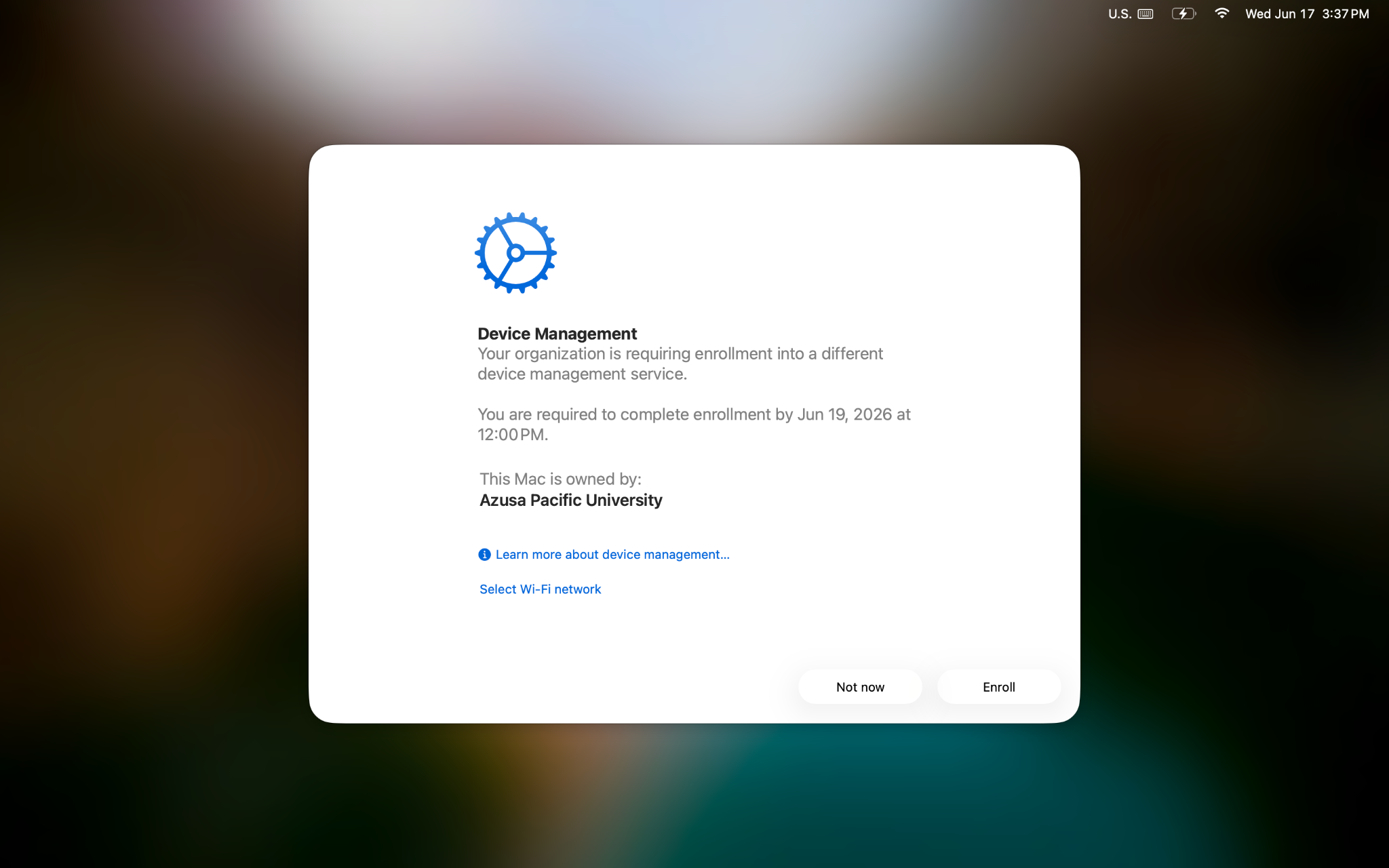
After selecting “Start Enrollment”, the enrollment process will take over the whole screen and will see this. Ensure you have stable internet connectivity and select “Enroll”.
Once the enrollment starts, you will see several progress updates on the lower left hand side. The status will include everything from server connection to policies being applied, etc.
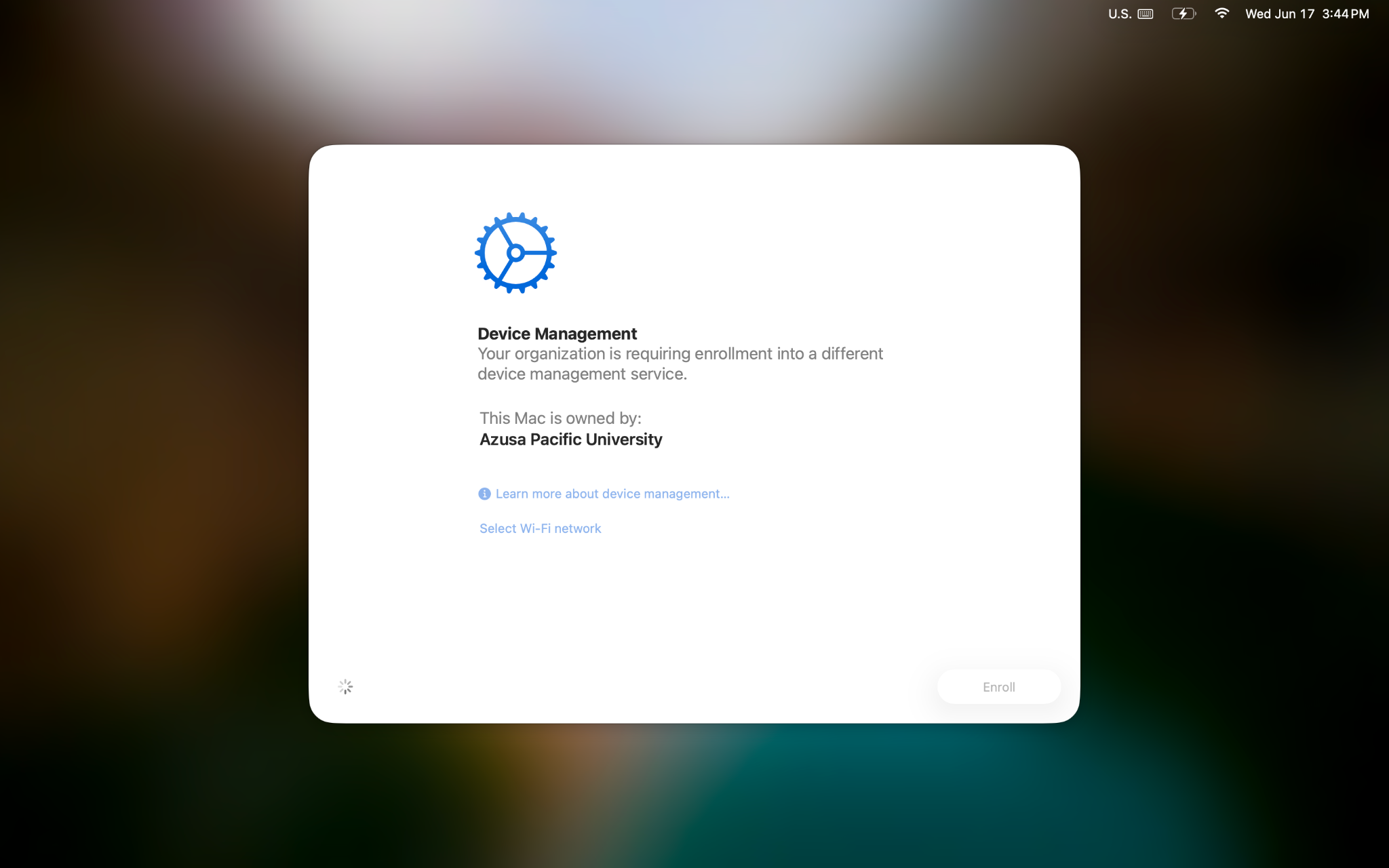
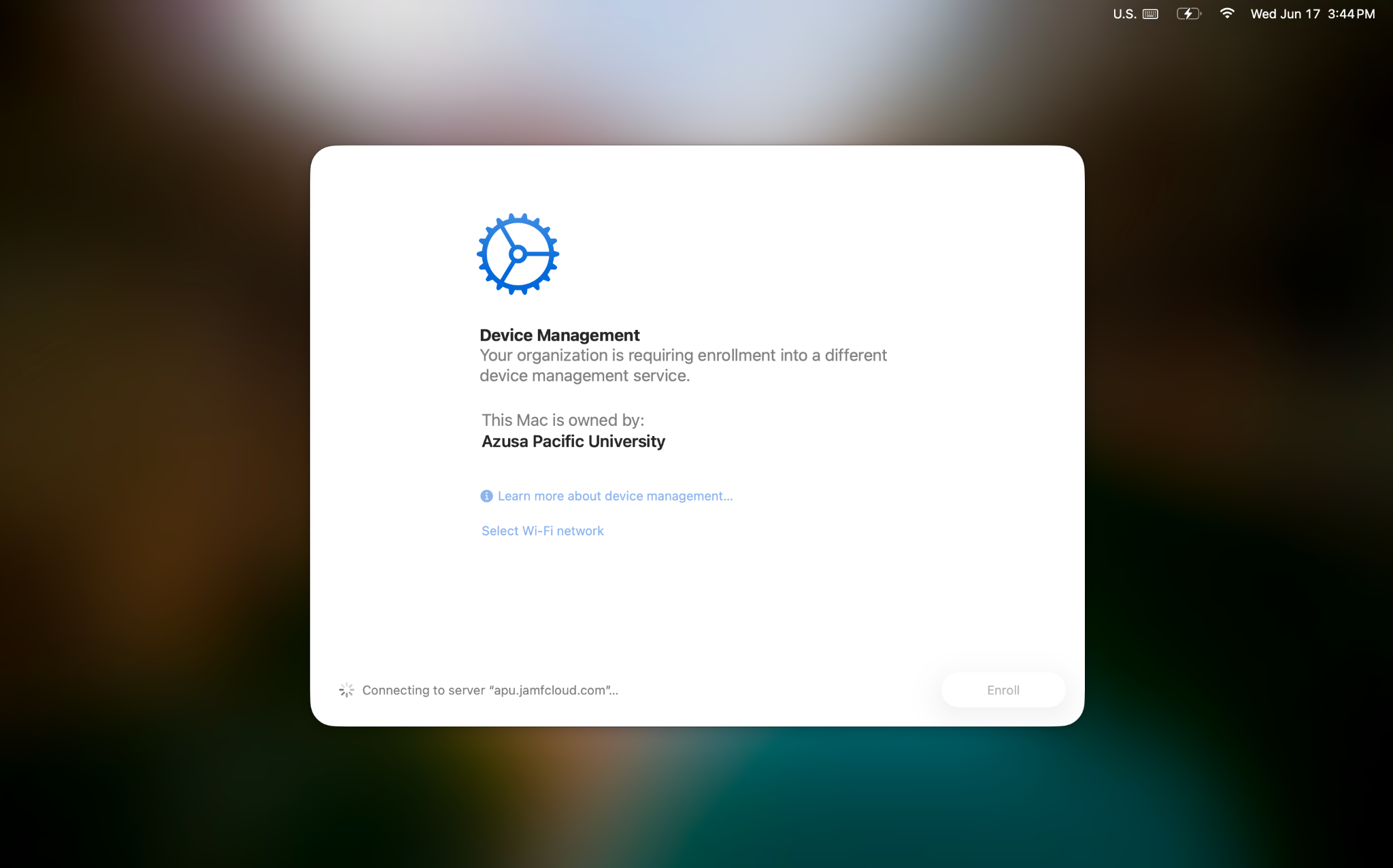
The screen might hang at “Waiting for management server…”.
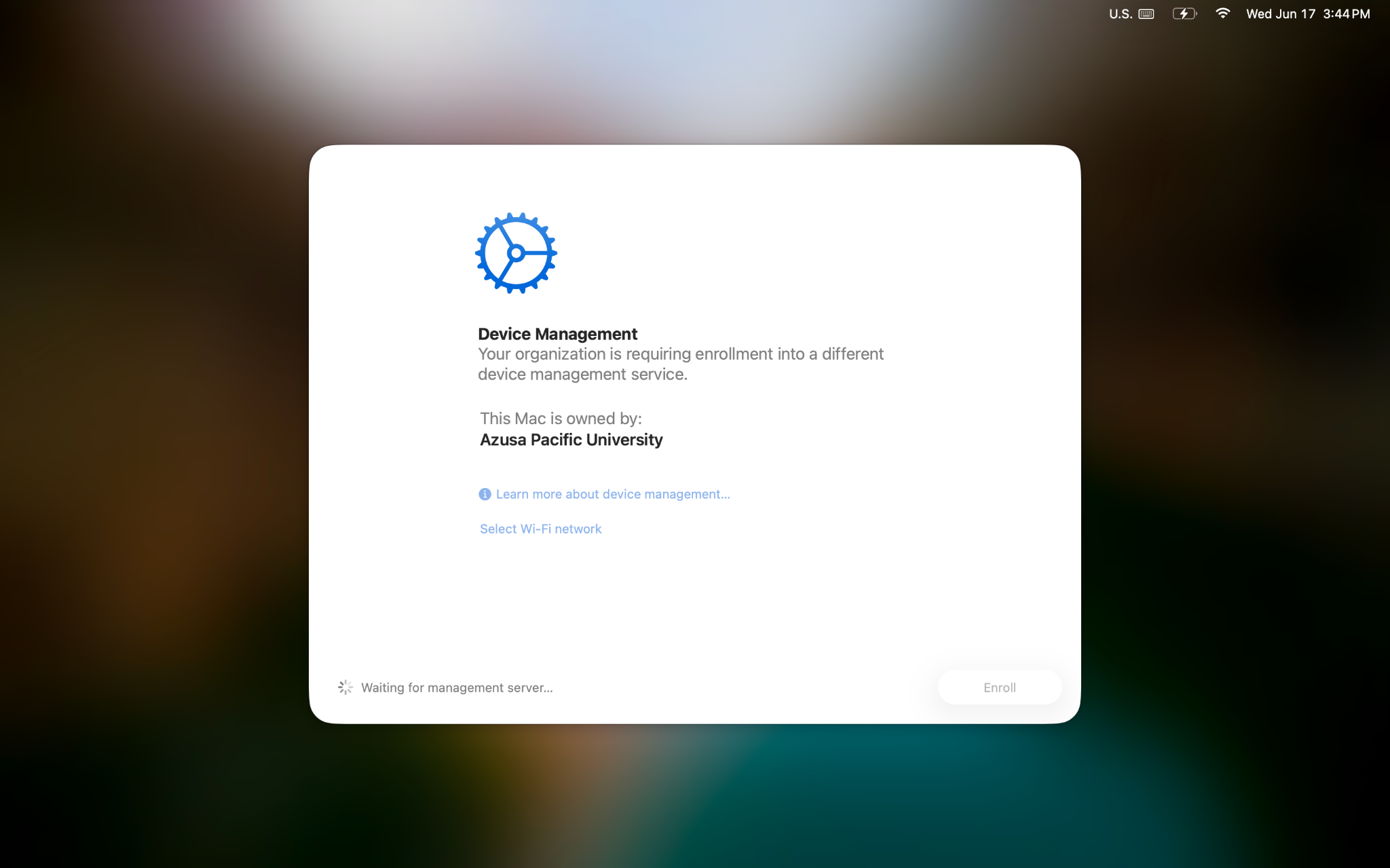
If the screen freezes here for more than 5 minutes, hold the power button until the computer shuts down. When you turn on your device, the enrollment is complete.

