


 209
209

This guide provides step-by-step instructions to resolve the "Virtual ID Not Loading" error in the APU Now app. By clearing your current session and re-authenticating through the Central Authentication Service, you will restore full access to your ID / One Card and account information.
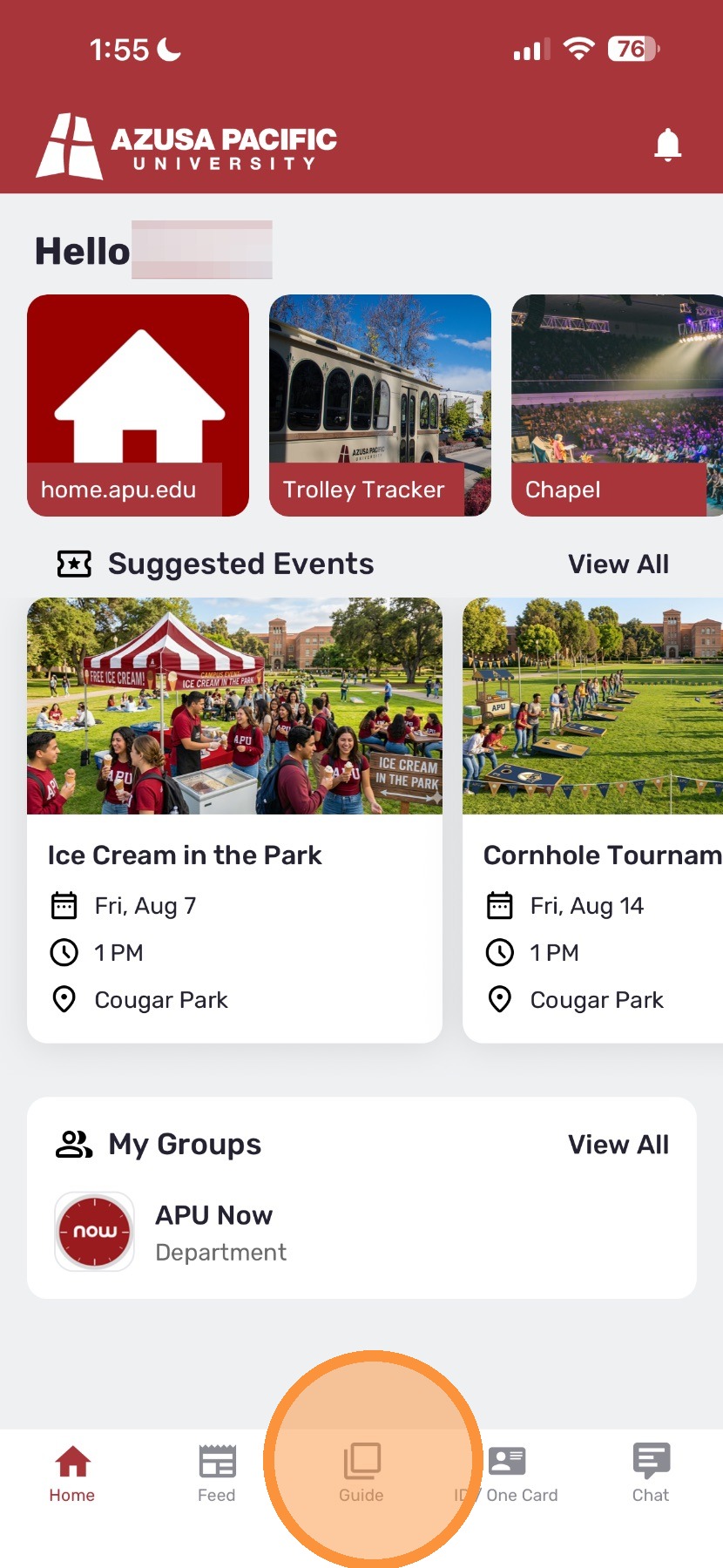
1. Access the Guide Menu
Open the APU Now app and tap Guide on the bottom navigation menu.
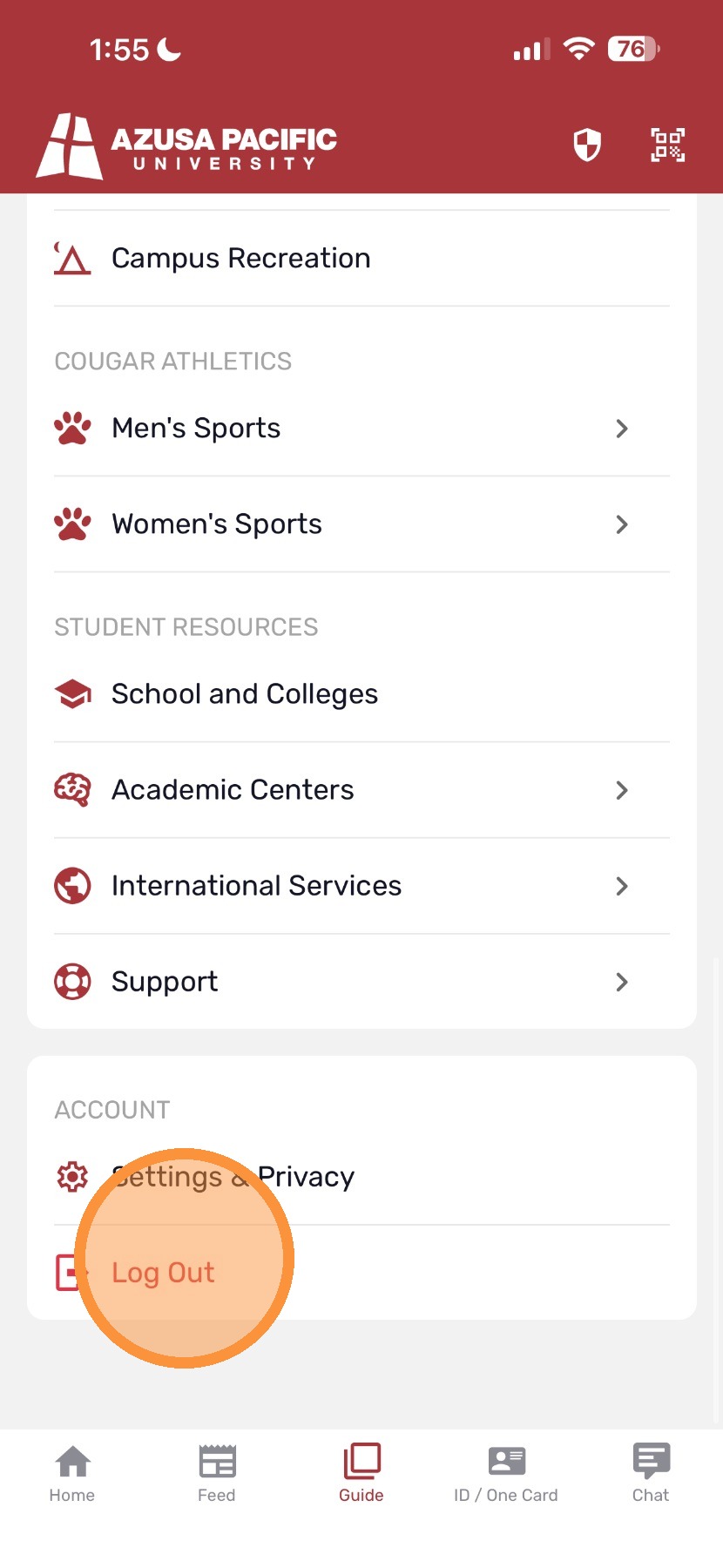
2. Log Out of Your Account
Scroll to the bottom of the page and tap Log Out.
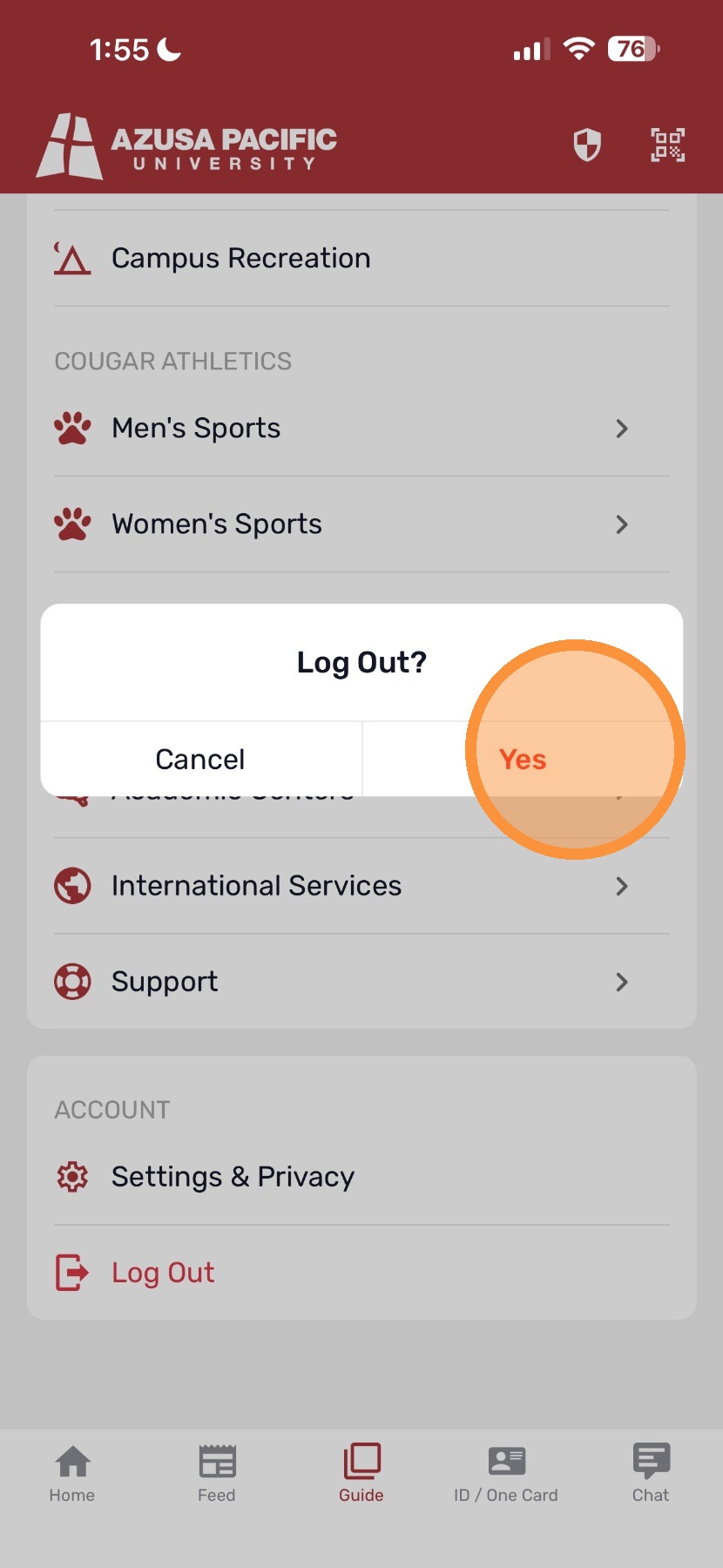
3. Confirm Log Out
When the confirmation pop-up screen appears asking if you want to log out, tap Yes.
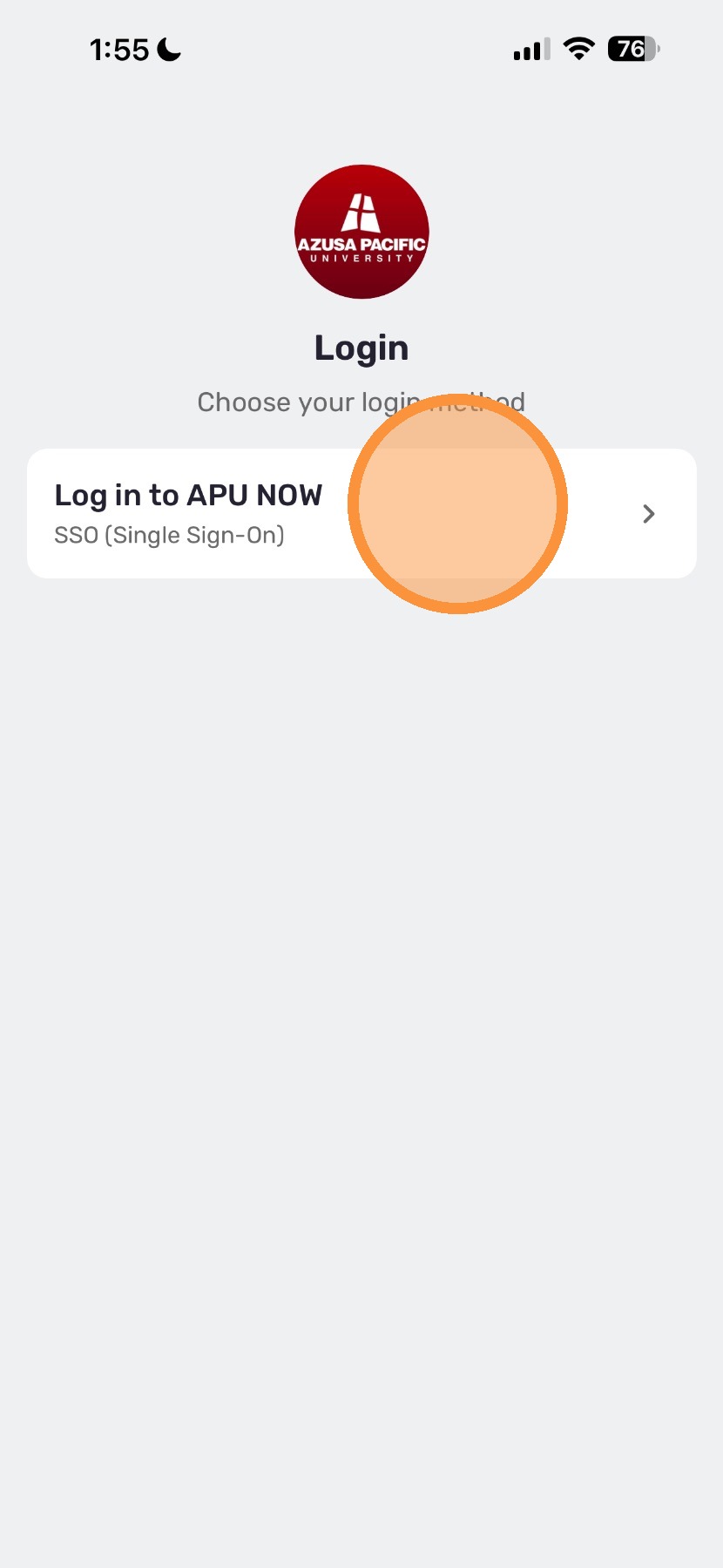
4. Initiate Single Sign-On (SSO)
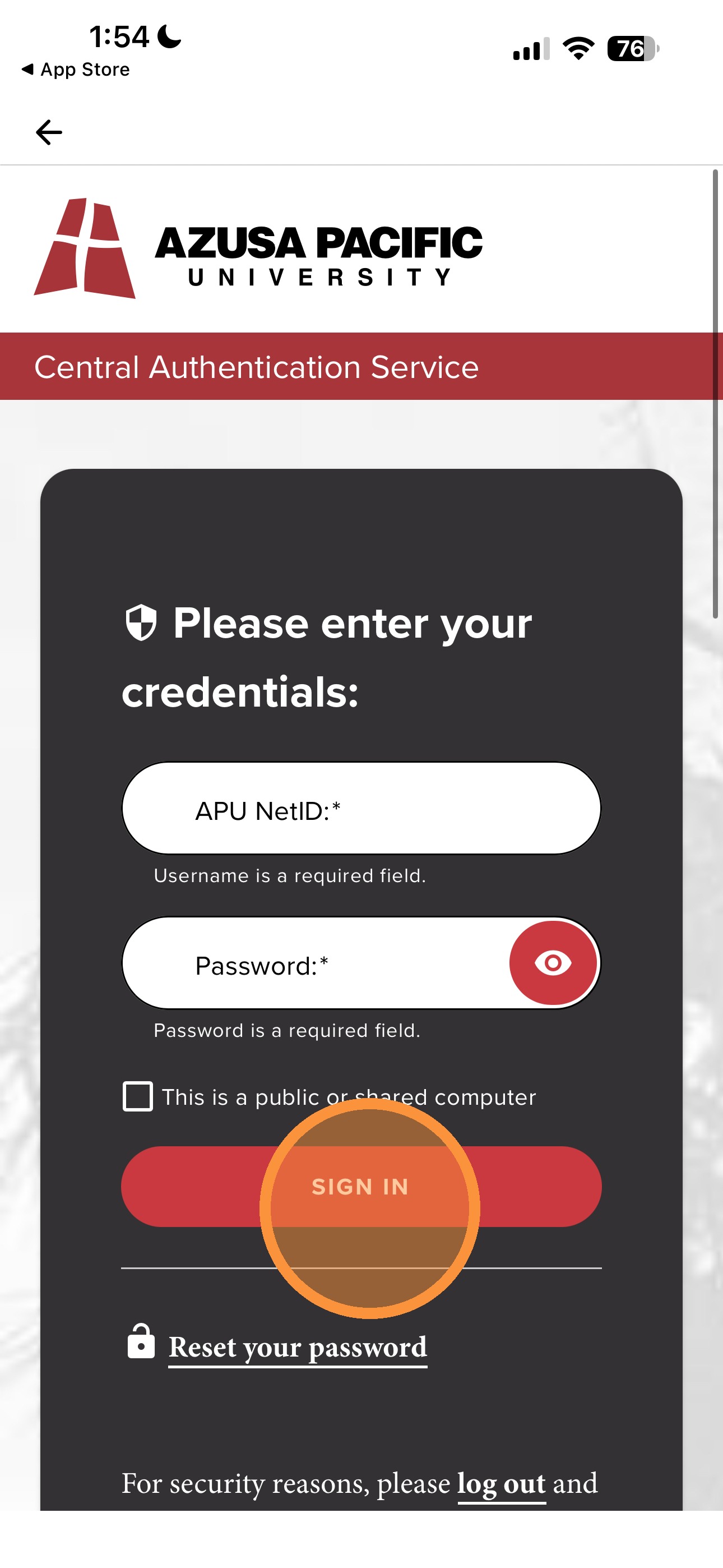
Tap Log in to APU NOW to open the Central Authentication Service screen.
5. Enter Credentials
Enter your APU NetID and password, then tap Sign In.
6. Complete Multi-Factor Authentication (MFA)
When prompted, open your authenticator app, retrieve the 6-digit authentication code, and enter it to verify your identity.
7. View Your Virtual ID
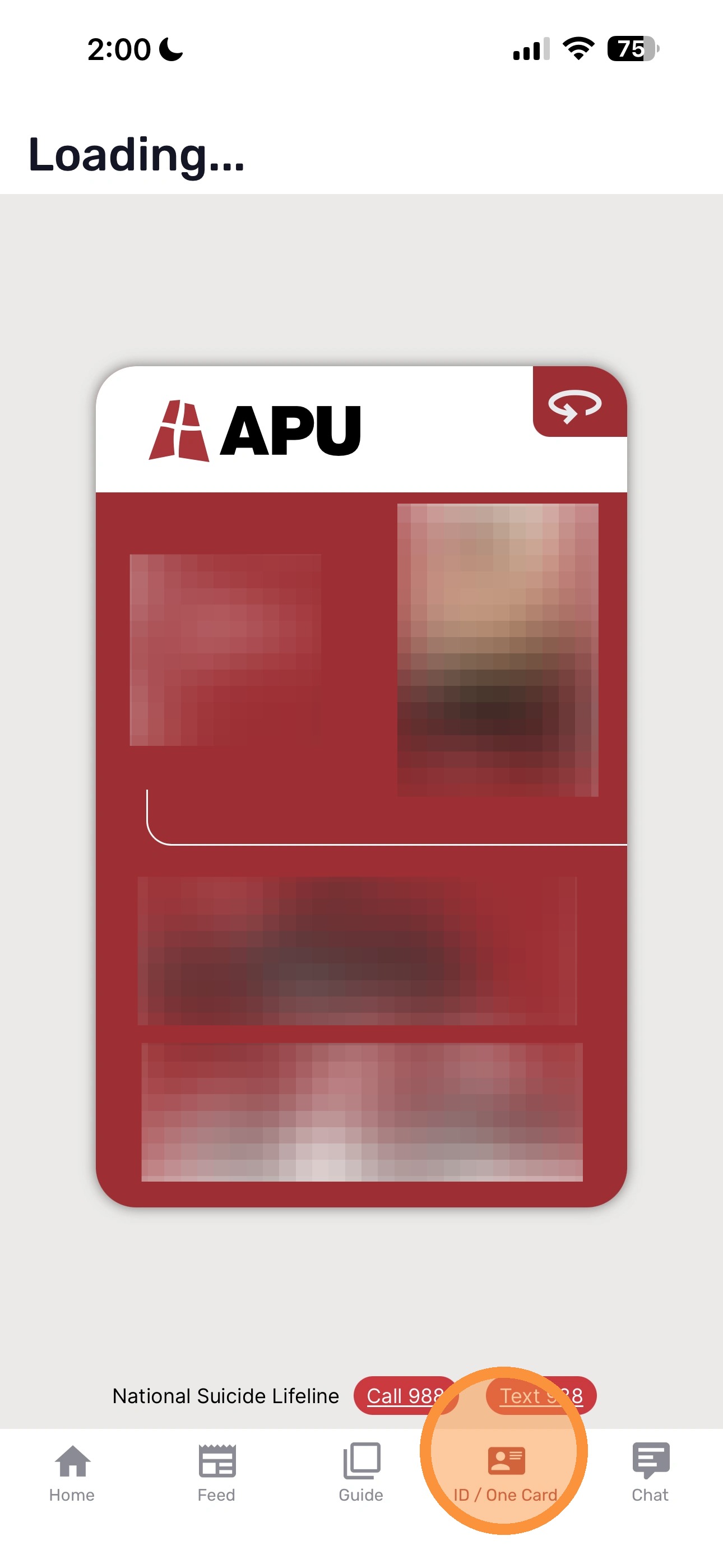
Once redirected back to the APU Now app home screen, tap ID/One Card on the bottom navigation menu. Your Virtual ID and user information will now load properly.
Still Not Working?
If your Virtual ID still fails to load after completing these steps, please contact the IT Support Desk at [email protected] for further assistance.

