754
754
If you've been approved for Cloudflare One (WARP) but it hasn't been installed on your device yet, follow the installation steps below.
Step 1:
Please download the .zip file: CloudFlare One Download
Step 2:
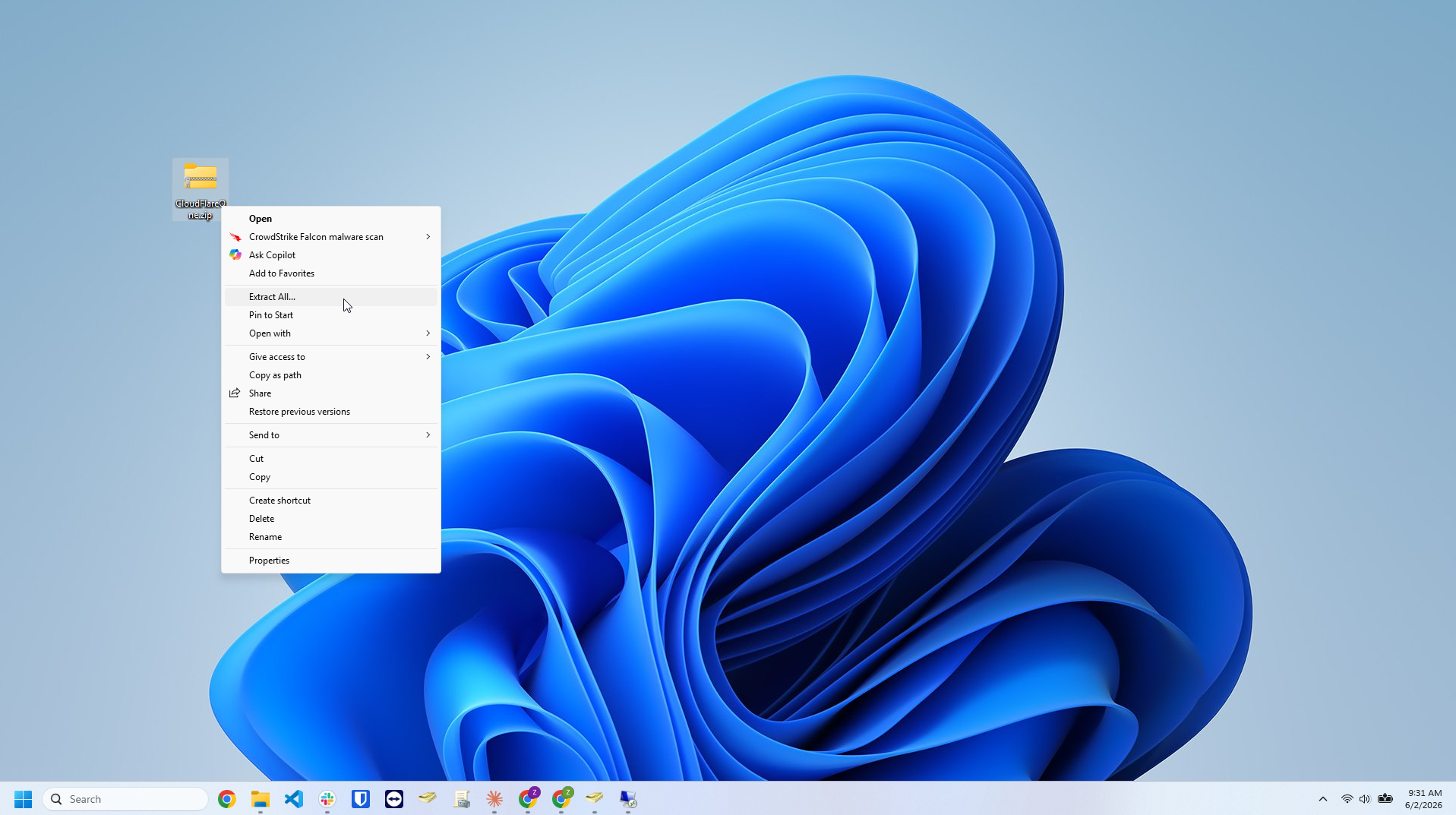
Drag and drop the file onto your desktop and right click the folder and "Extract All..." the contents.
Step 3:
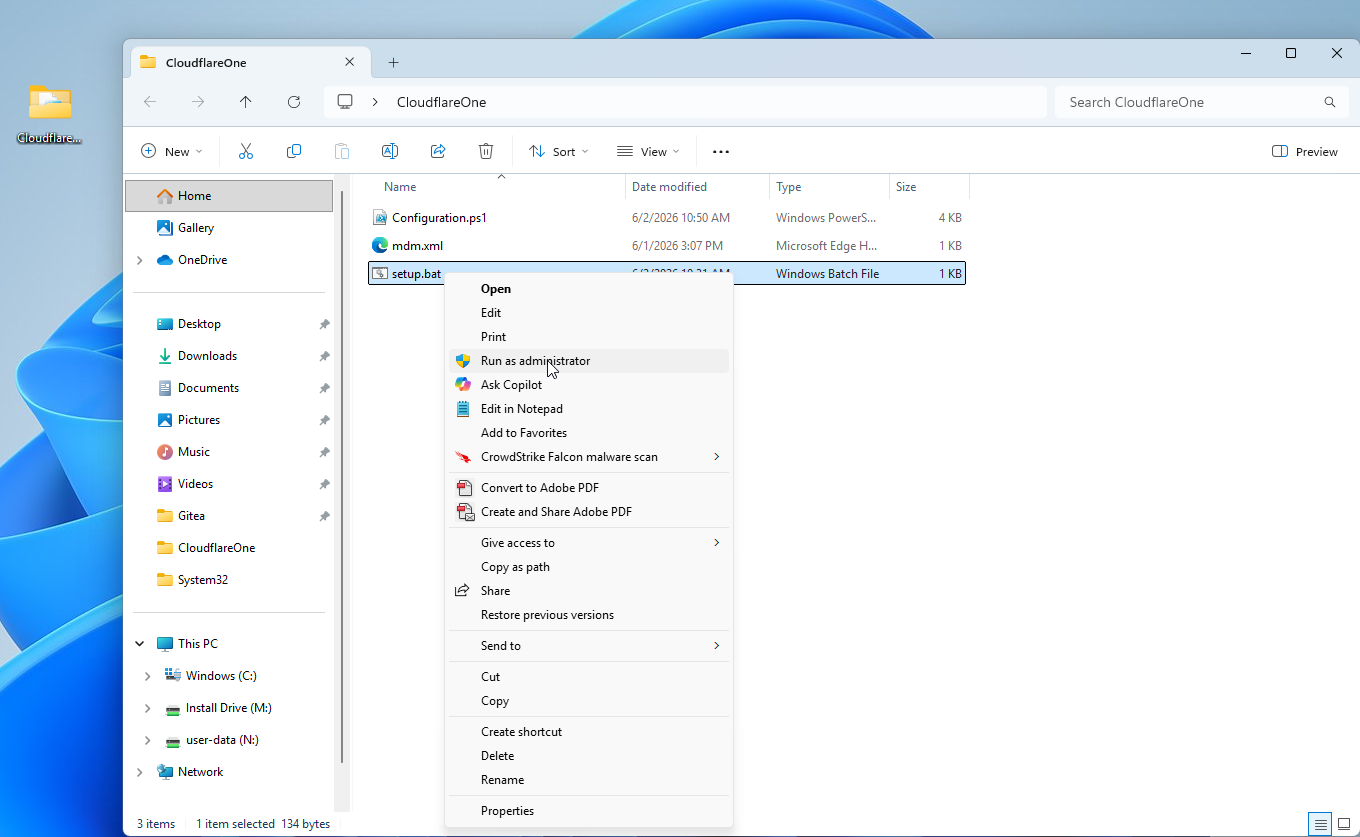
A duplicate unzipped folder will be created. Open the folder, right click "setup.bat" and "run as administrator".
Step 4
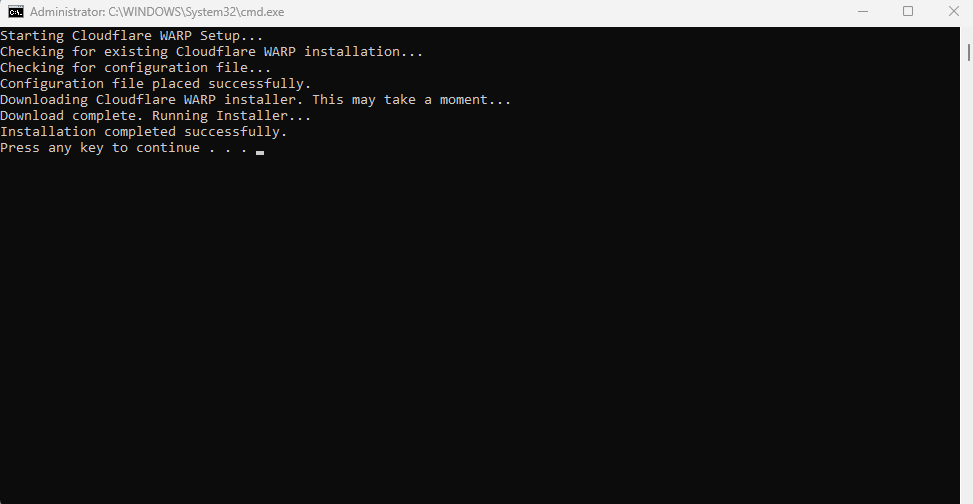
A window will open up showing the progress of the download and installation. Please wait until it is complete and states: "Installation completed successfully. Press any key to continue..."
Step 5
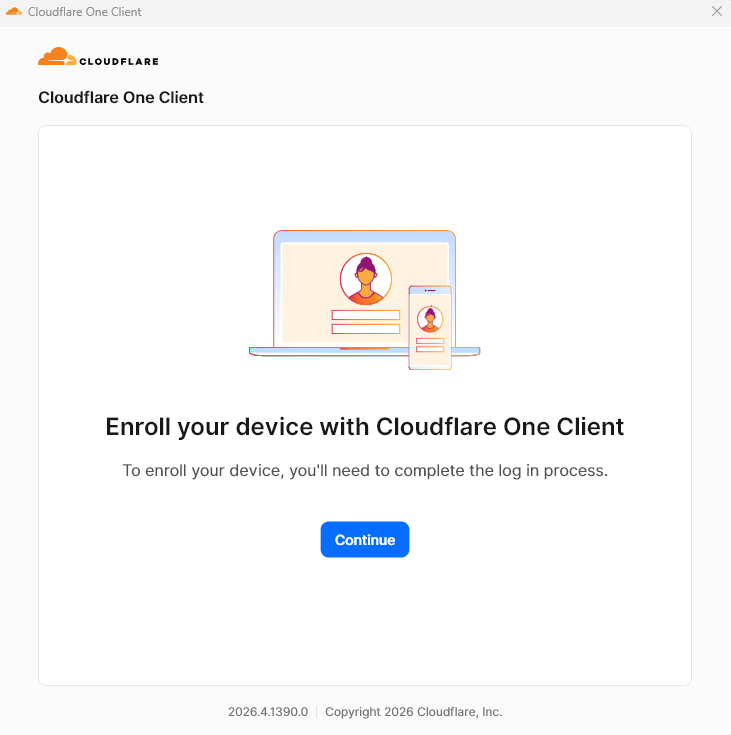
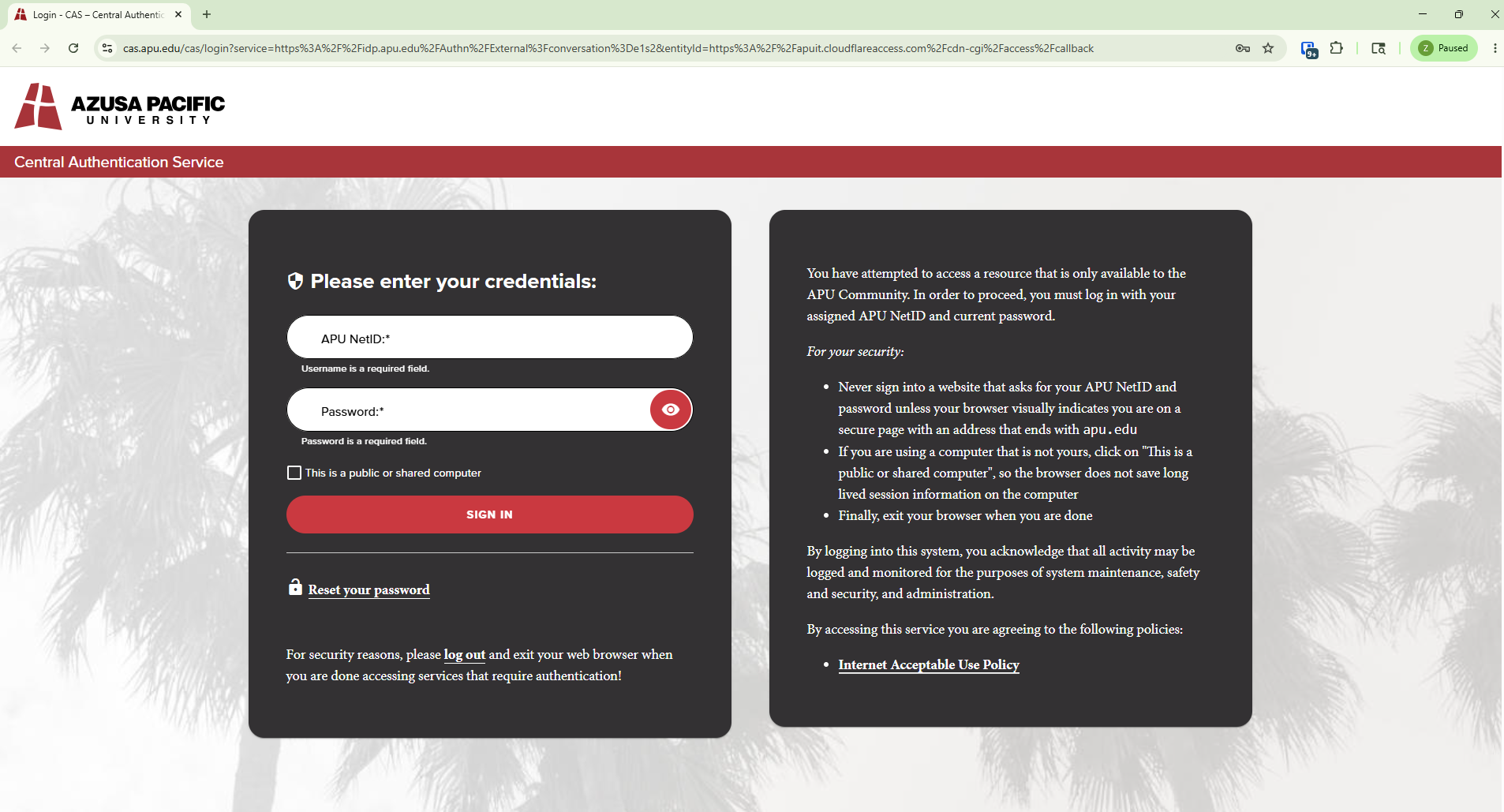
After the installation, you should see a couple windows open: One is CloudFlare One and the other will be your browser with CAS. Sign into CAS to authenticate your credentials.
Step 6
After signing in, you should the CloudFlare One page say "Disconnected". Click on the "Connect" button.
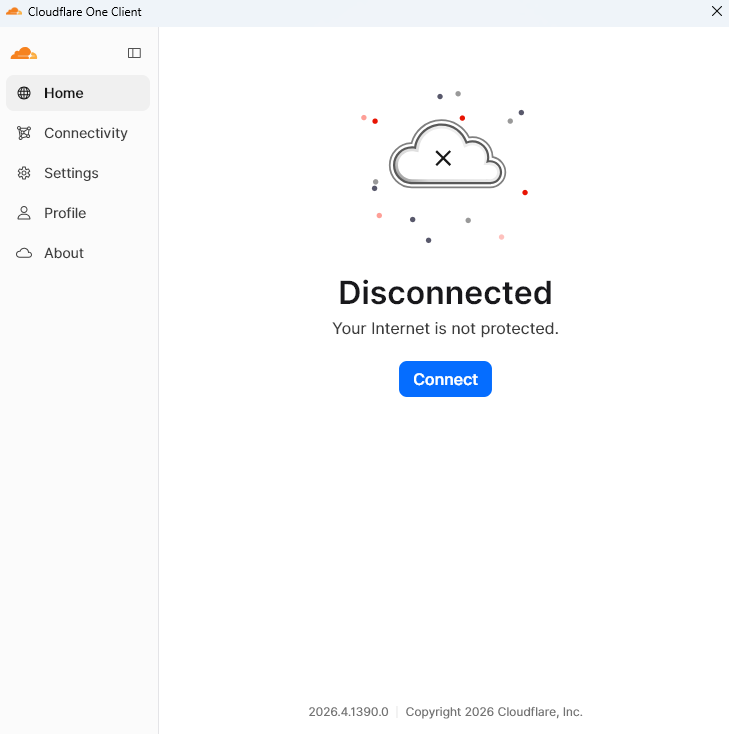
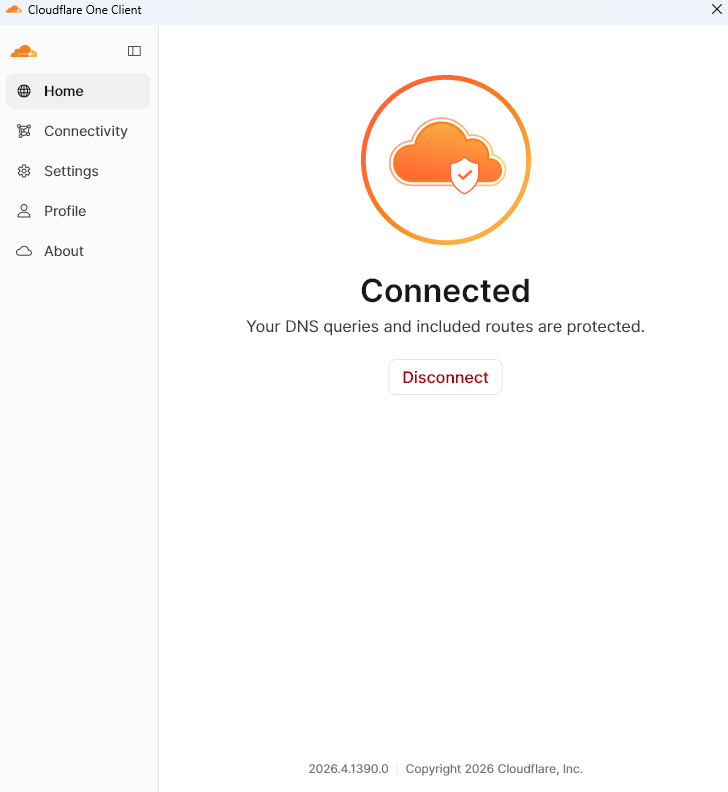
You are now connected to APU's network and can utilize your APU resources. Feel free to close the window, it will remain connected.
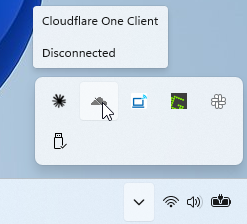
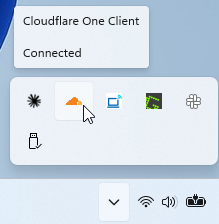
If needed, you can open or see the status of the client in the System Tray by clicking the up arrow icon on the bottom right-hand side of your screen.