


 349
349
For APU employees that need access to APU resources that are not available from off-campus, we have a tool from Cloudflare called the Warp client. This easy to use tool is designed to create a secure connection between your computer and APU's network to give you access to APU resources you need.
Windows
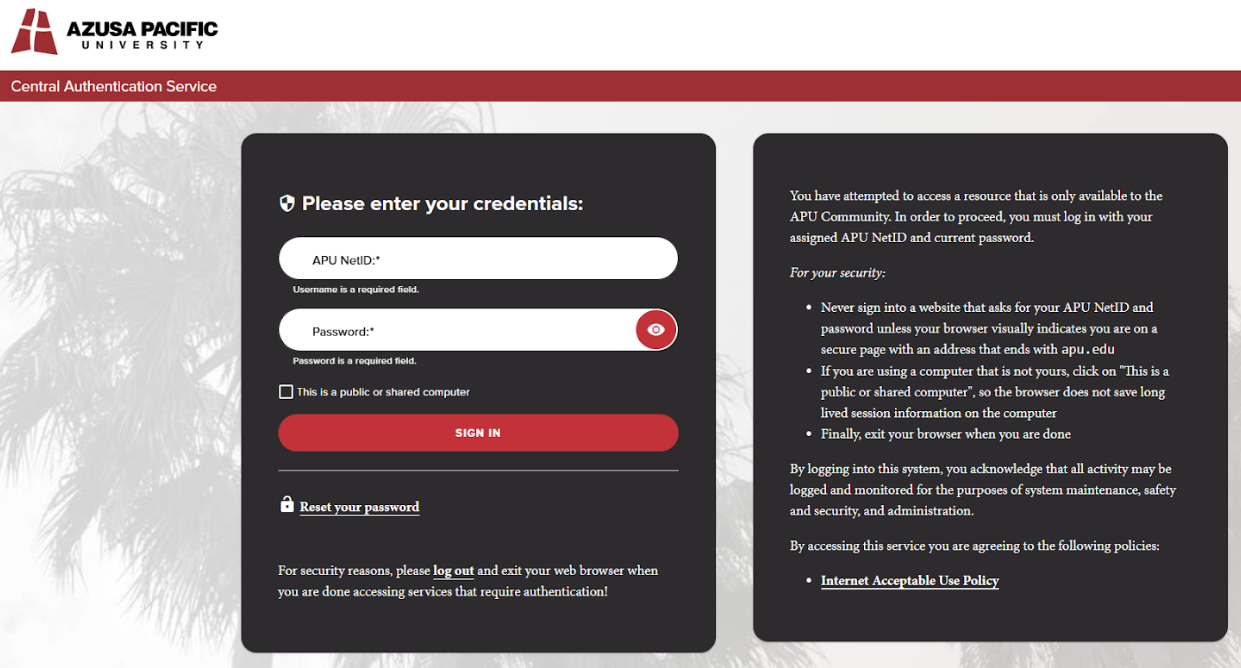
For Windows laptops, the Warp client will be automatically deployed to your laptop. Once it installs, it will pop up a CAS sign-in window. Please sign in with your APU credentials.
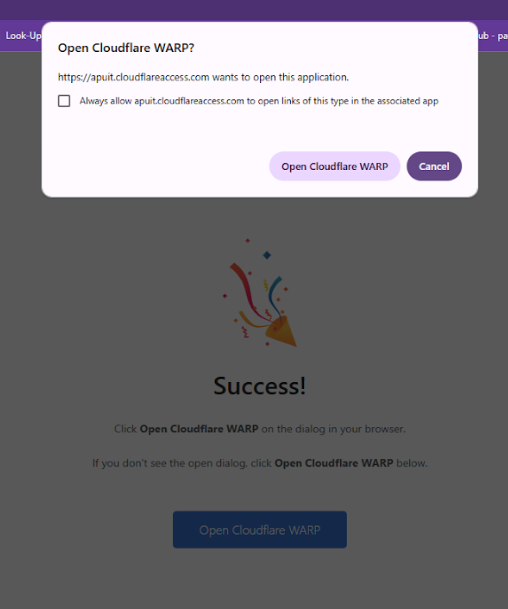
After logging in, click "Open Cloudflare Warp".
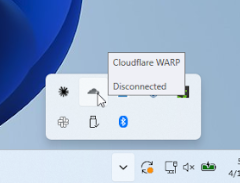
You should now have an icon for the Warp client in the lower right hand side of your screen in the System Tray. It looks like a cloud. When you hover over the Warp icon it will show you are disconnected.
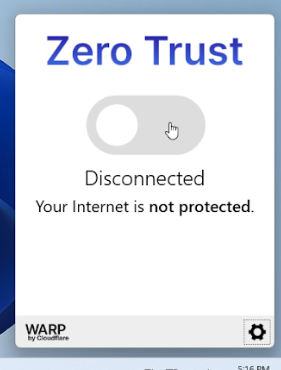
Click on the icon to open the Warp client and then click on the button below the words "Zero Trust" and the Warp client will connect.
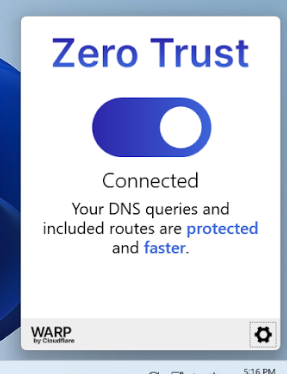
You are now connected to APU's network and can utilize your APU resources.
Mac
For Mac laptops, the Warp client will be automatically deployed to your laptop. Once it installs, it will pop up a CAS sign-in window. Please sign in with your APU credentials.
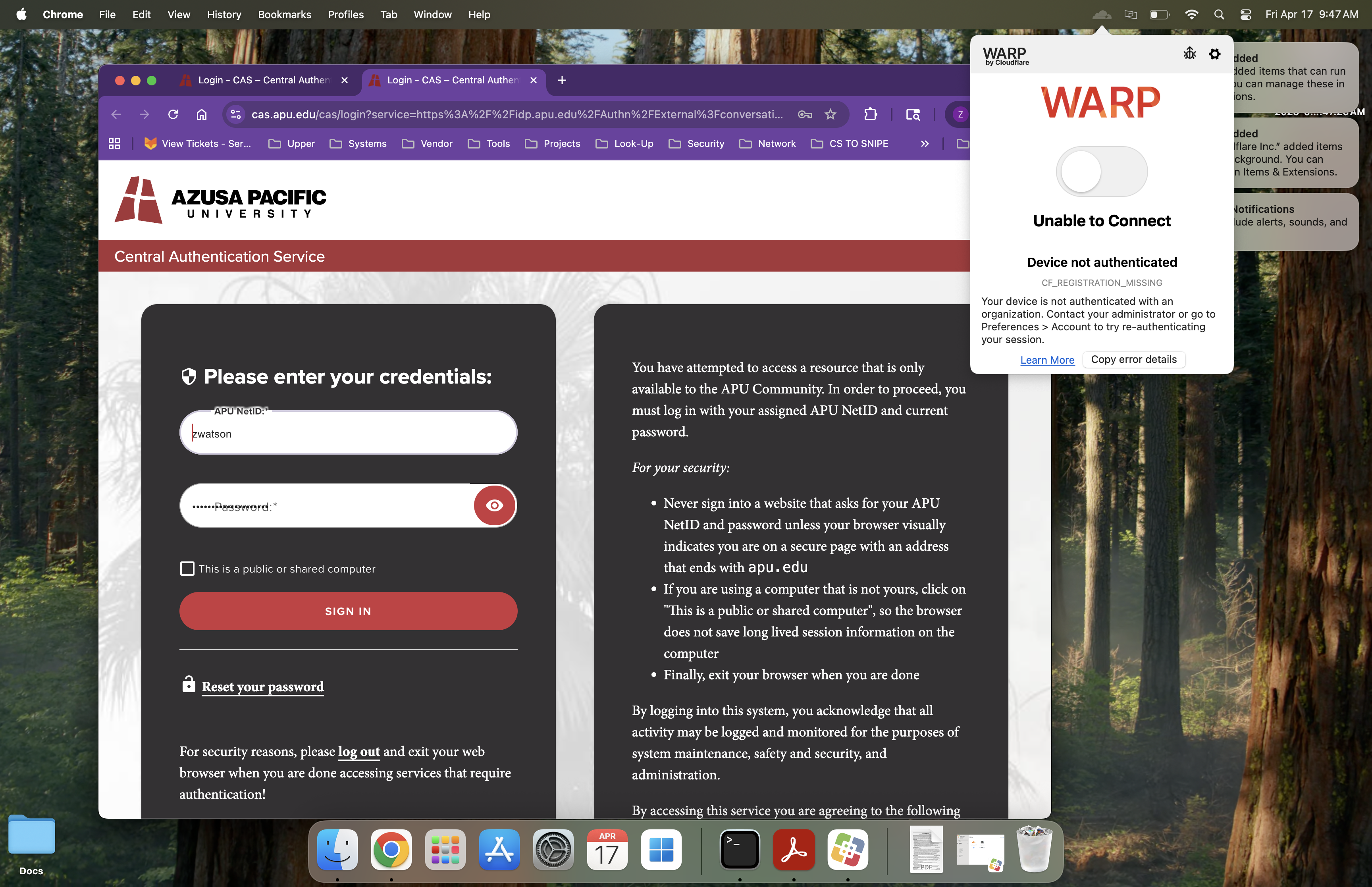
After logging in, click "Open Cloudflare Warp".
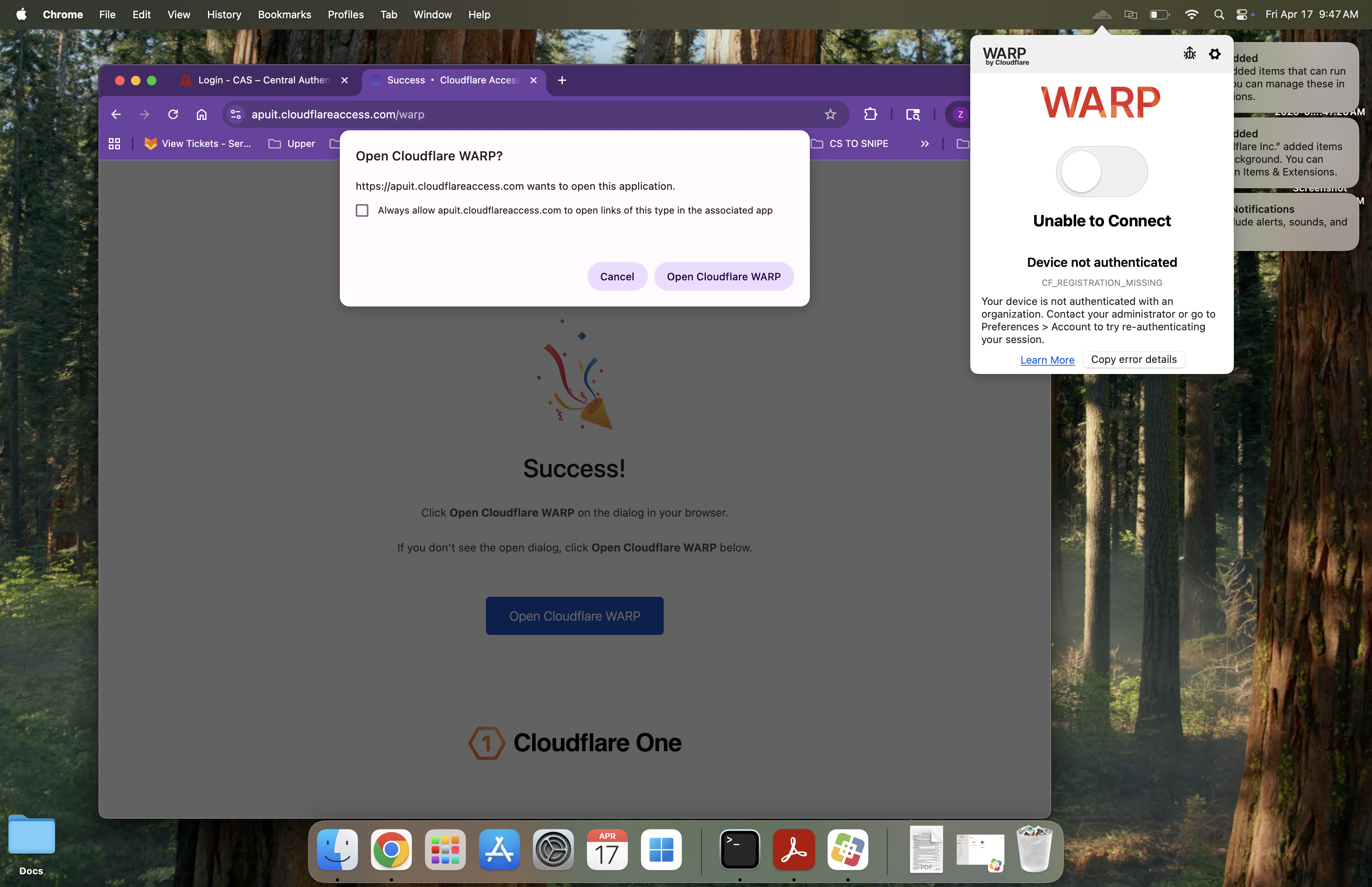
You should now see the Success window. This means the Warp client is installed correctly and ready for use.
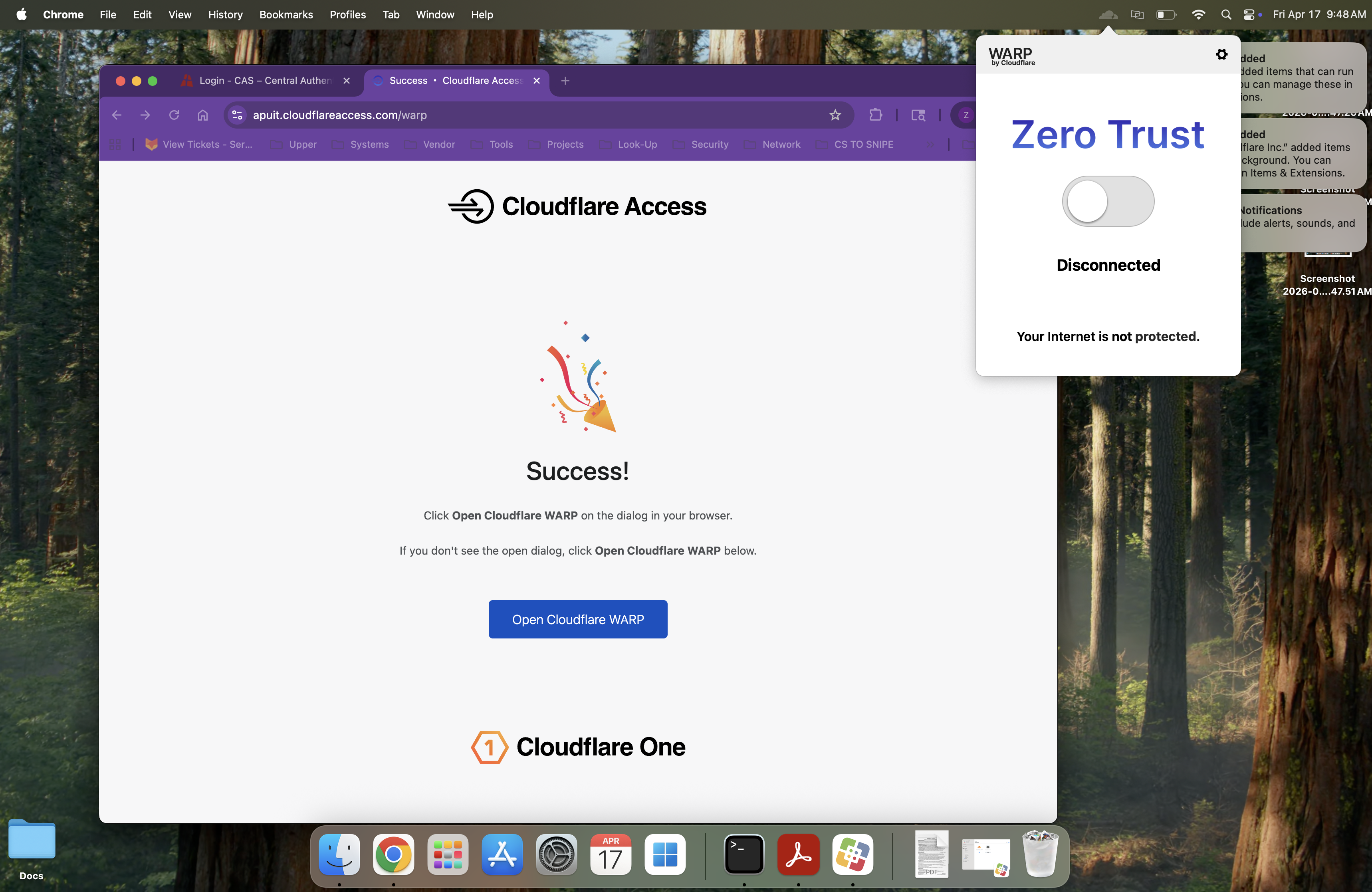
You should now have an icon for the Warp client in the upper right hand side of your screen. It looks like a cloud. When you click on the Warp icon it will show you are disconnected.
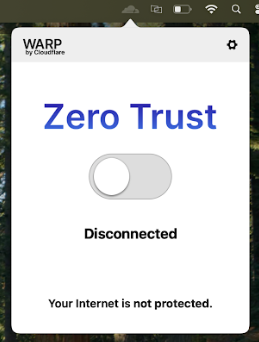
Click on the button below the words "Zero Trust" and the Warp client will connect.
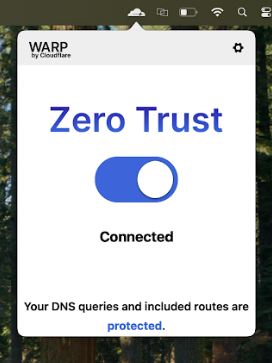
You are now connected to APU's network and can utilize your APU resources.

